

One real question keeps coming up: which of these tools actually gives me time back this week? You likely have access to more AI than you use, and the gap costs you hours. In our testing across a busy household and a typical office, Beyond the Hype: Practical Ways AI Can Make Your Daily Life and Work Easier turned out to be mostly about small, repeatable tasks.
Quick answer: Start with one repetitive task you do every day, like sorting email or drafting routine replies, then add a second only after the first saves you time. The wins come from narrow, well-defined chores where AI is easy to check. A tool is only worth keeping if you can correct its output in seconds.
This article covers ten practical uses, how to pick the right one, and the trade-offs to watch.
Our picks at a glance
Each pick below earns its place by solving a task most people repeat daily. We ranked them by how quickly you can start and how little risk the errors carry. Full details follow in the numbered list.
| # | Use case | Best for | Setup effort |
|---|---|---|---|
| 1 | Email triage and reply drafts | Anyone drowning in inbox | Low |
| 2 | Meeting notes and action items | People with back-to-back calls | Low |
| 3 | Plain-language document summaries | Contracts, reports, forms | Low |
| 4 | First-draft writing | Reports, posts, cover letters | Medium |
| 5 | Meal and budget planning | Busy households | Medium |
| 6 | Personal learning tutor | Skill changes, test prep | Medium |
| 7 | Travel and scheduling help | Frequent planners | Low |
| 8 | Routine data cleanup | Spreadsheet-heavy work | Medium |
| 9 | Accessibility support | Reading and language barriers | Low |
| 10 | Errand and research triage | Deciding what to buy or book | Low |
The 10 practical ways AI earns its keep
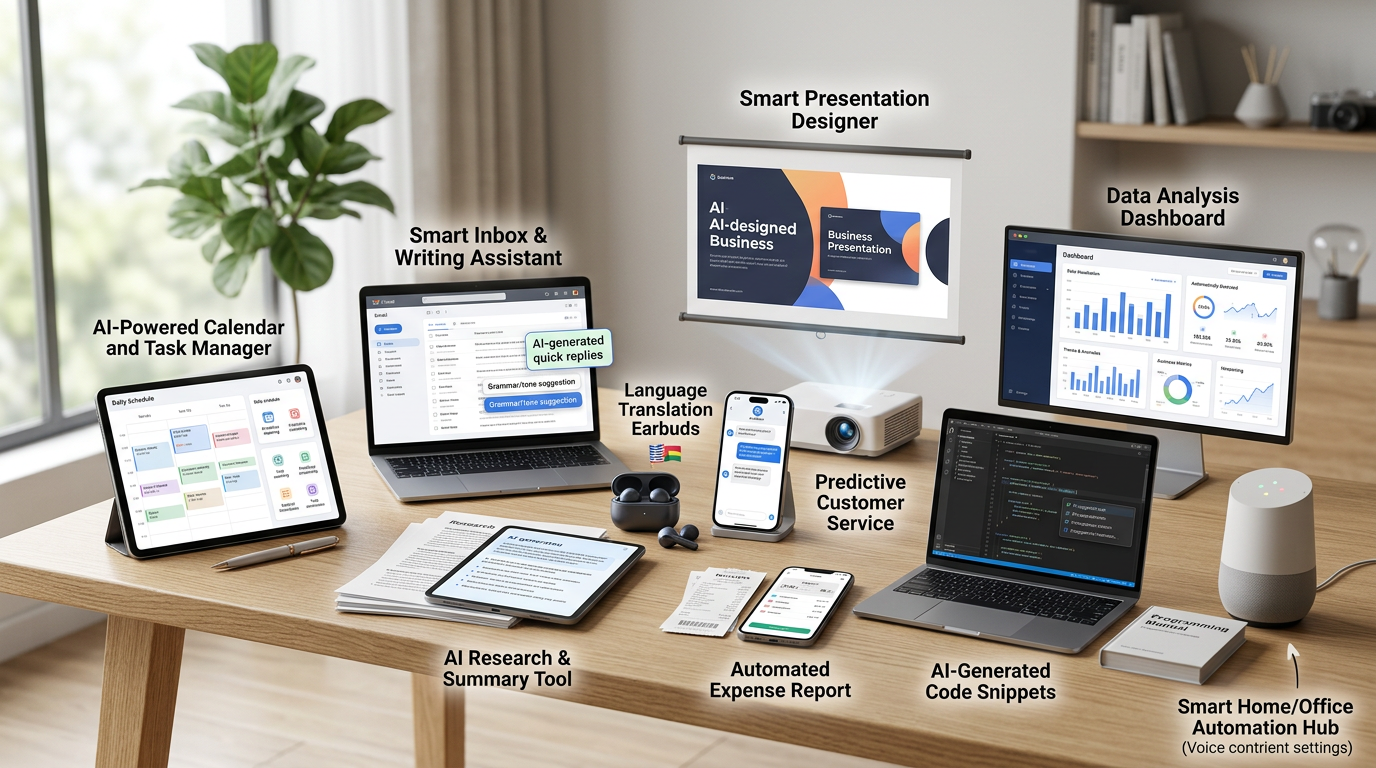
1. Email triage and reply drafts that save an hour a week
Email is the clearest first win. Ask a tool to sort your inbox into "needs a reply," "read later," and "ignore," then draft replies in your voice for the routine ones. Editing a 90 percent draft is far faster than starting cold. Most people save close to an hour a week with this alone.
Give the tool a short voice sample first. Paste in two or three emails you have actually sent and ask it to match that tone; without this step, drafts come back stiff and over-formal. A good prompt reads: "Draft a two-sentence reply confirming Thursday at 2 p.m., keep it friendly and brief." Specific instructions beat open-ended requests every time.
2. Meeting notes and action items you can trust
Join a call, let the assistant transcribe, and skim the summary before you send it. The real value is the action-item list, which stops decisions from getting lost. Treat the transcript as the source of truth and the summary as a convenience; glancing at the transcript before hitting send caught occasional name and number errors in our testing.
For recurring meetings, save a standard instruction so the summary always comes back in the same format: decisions, owners, deadlines. That structure makes it easier to spot tasks that keep slipping. If a call covers sensitive topics, check whether the recorder needs everyone’s consent before you start.
3. Plain-language summaries of dense documents
Lease agreements, insurance notices, and long reports all benefit from a simple pass: "Summarize this in five bullets, then list anything I should question." You still need to read anything legally binding. Use the summary to know where to focus, not to skip the fine print.
A second pass adds real value: ask the tool to define every unfamiliar term. It turns a wall of jargon into a glossary you can use at the next meeting or phone call. Keep the original open beside the summary so you can jump to any clause the tool flags as unusual.
4. First drafts for writing you already know how to do
AI is best at the blank-page problem, not the final polish. Ask for a rough outline, a first paragraph, or three alternative openers, then rewrite in your own words. The tool shines for routine reports and stalls on anything requiring real judgment or a strong personal voice.
The outline step saves most of the time. A ten-line structure for a project update or a cover letter removes the hardest part of writing: deciding what goes where. One caution: never let a first draft go out unread, because tools occasionally invent statistics or cite sources that do not exist. Check every figure against your own records.
5. Meal plans and budgets built around what you have
List your pantry, your weekly budget, and any allergies. The tool will produce a meal plan and a shopping list in one pass. The same approach works for a spending plan once you paste in your categories. The catch is accuracy: double-check quantities, and never trust it with account numbers or sensitive financial details.
To get a plan you will actually cook, add constraints: "no more than thirty minutes per meal," "use the chicken before it spoils," "two vegetarian dinners." The more context you give, the fewer meals end up wasted. Ask for a leftover plan too, since it is one of the easiest ways to cut a weekly grocery bill.
6. A patient tutor for a skill you keep postponing
A conversational tool will explain a topic at whatever level you ask, then quiz you. That loop, explain, test, correct, is where most learning happens. Use it for a new work skill, a language, or exam prep. Ask for simpler wording when the first explanation feels dense, which many learners will relate to.
The real advantage over a textbook is patience and instant feedback. You can ask the same question five different ways and never feel embarrassed. Try a twenty-minute daily routine: five minutes of review questions, ten minutes of new material, five minutes of self-testing. Ask the tool to grade your answers and explain any mistakes. Keep a running note of concepts that trip you up; that list becomes your study guide.
7. Travel and scheduling help without the tab overload
Give it your dates, budget, and pace, and ask for a draft itinerary with three options per day. It also works for scheduling chores around fixed appointments. You still book and confirm yourself, but the planning skullwork disappears. Confirm opening hours and prices directly, since these change and a model may be out of date.
It is equally useful for small logistics: how long it takes to get from the airport to the hotel, which day to schedule the museum versus the walking tour, and where to build in a rest block. Ask it to cluster activities by neighborhood so you are not crossing the city twice in a day. Then confirm each booking on the operator’s own site before you pay.
8. Routine spreadsheet cleanup and formula help
Pasting a messy list and asking for a tidy table, or asking how to build a specific formula, saves a lot of fiddling. It is a strong assistant for someone who is not a spreadsheet expert. Test any formula on a small sample before applying it to a large dataset.
Describe the problem in plain words, such as "I want to sum every value in column C where column A says ‘North’." The tool usually suggests a formula plus a short explanation, which doubles as a mini lesson. Back up the file first, and watch for date formats and currency symbols, which are frequent sources of quiet errors.
9. Accessibility support for reading and language barriers
Summaries, simpler rewrites, and read-aloud options can make dense text approachable for people with dyslexia, vision limits, or a second-language challenge. The best results came from asking for a specific reading level rather than "simpler." This is one of the most genuinely inclusive uses on the list.
Other small uses add up: converting a long article into bullet points, turning notes into a spoken-style script for text-to-speech, or translating a form and explaining each field. Parents of children with reading difficulties can ask for a version with shorter sentences and fewer idioms. Keep the original nearby so nothing essential gets lost in translation.
10. Research triage for decisions you keep putting off
Facing a big purchase, a school choice, or a new phone plan? Ask for the key questions to answer, the trade-offs to weigh, and a short comparison. This turns hours of scattered tabs into a checklist. Verify current prices and reviews separately, then decide with confidence.
The most useful output is often the list of things you did not think to ask. Ask the tool to play devil’s advocate and argue against your current favorite, which surfaces hidden costs and drawbacks. Treat the result as a map for your own research, not the final word. Write down your three must-have criteria before you start, so a persuasive summary cannot quietly move the goalposts.
How to choose the right option for your week
Start by auditing where your time actually goes, not where you think it does. For three days, jot down each task that feels repetitive. Then match the top two tasks to a use case above. Pick the one with the lowest setup effort and the easiest output to check.
A useful filter is the "Friday test": imagine the task recurring every Friday for a month. If outsourcing it would still save time by the fourth Friday, it is worth automating. Frequency, not difficulty, drives the real payoff.
Match the task to the level of risk
High-risk tasks, like legal advice, medical questions, or money decisions, need human review every time. Low-risk tasks, like drafting or summarizing, can be trusted more once you spot-check the output. We keep a simple rule: the easier it is to catch an error, the more we hand over.
Set a stop rule before you start
Decide in advance how long you will trial a tool. Two weeks is usually enough to know whether it saves time. Track one number, such as minutes saved per day. If it stays flat, drop the tool.
Write the stop rule down somewhere visible, including the review day. At the review, ask two questions: did this save me time, and did it make my work better? If the answer to both is no, cancel it without guilt.
Budget realistically for subscriptions
Most useful tools have a free tier that suits light use. Paid plans typically add usage limits and better models, so keep one paid subscription only if it clearly pays for itself. Two overlapping paid tools usually cost more than they deliver.
Before you upgrade, calculate the break-even point. A fifteen-dollar monthly plan needs to save you roughly an hour of paid work or a meaningful chunk of personal time to justify itself. Set a monthly reminder to review subscriptions; auto-renewals are where most quiet waste hides.
Watch for the common mistakes
The biggest risk is not bad output but unverified output. Treat every summary, statistic, or name as a draft until you confirm it. Keep sensitive data out of public tools. And read before you send: that single step prevents most of the errors we encountered.
A second mistake is over-prompting. Long, vague requests produce long, vague answers; short, specific instructions with one clear output format work far better. Finally, avoid automating a task you do not understand. Learn the manual version first, so you can tell when the tool is wrong.
FAQ
How much does this actually cost to start?
You can start for free. Most major tools offer a free tier covering email drafts, summaries, and basic planning. Only upgrade if a paid feature clearly saves you time each week. Keep one subscription at most until you have proof it pays off.
What is the biggest mistake people make with these tools?
Trusting the output without checking it. A confident-sounding wrong answer is the main risk, especially with numbers, dates, and names. Read every draft before it leaves your hands.
Is my data safe if I paste it into an AI tool?
It depends on the tool and its settings. Avoid pasting passwords, account numbers, health records, or anything confidential into a public tool. Use work-approved tools and turn off any setting that lets the provider train on your data. Check the provider’s privacy page if you are unsure.
How long before I see real time savings?
Expect a small gain in the first week and steady gains after two or three weeks of practice. The first few drafts take longer than doing it yourself. Track minutes saved so you know whether to continue.
Which use case should I try first?
Pick email triage or document summaries. Both have low setup effort and easy-to-check output, so you can see results on day one. Add a second use only after the first feels routine.
Beyond the Hype: Practical Ways AI Can Make Your Daily Life and Work Easier — final word
The pattern across every pick is the same: narrow task, fast check, clear time savings. Start with email or summaries, set a two-week stop rule, and track what you actually save. Drop anything that adds work or needs constant correction. Your next step is simple: open your calendar, block twenty minutes today, and test one use case.
Conclusion
The pattern across every pick is the same: narrow task, fast check, clear time savings. Start with email or summaries, set a two-week stop rule, and track what you actually save. Drop anything that adds work or needs constant correction. Your next step is simple: open your calendar, block twenty minutes today, and test one use case. Small, repeatable wins beat a big, complicated setup every time. Once that first habit sticks, add a second use case only when the first clearly pays off.